Knowledge base › Online and app orders
Draw where you deliver. ROUX looks up every delivery address and refuses the ones outside the shape.
Draw the area
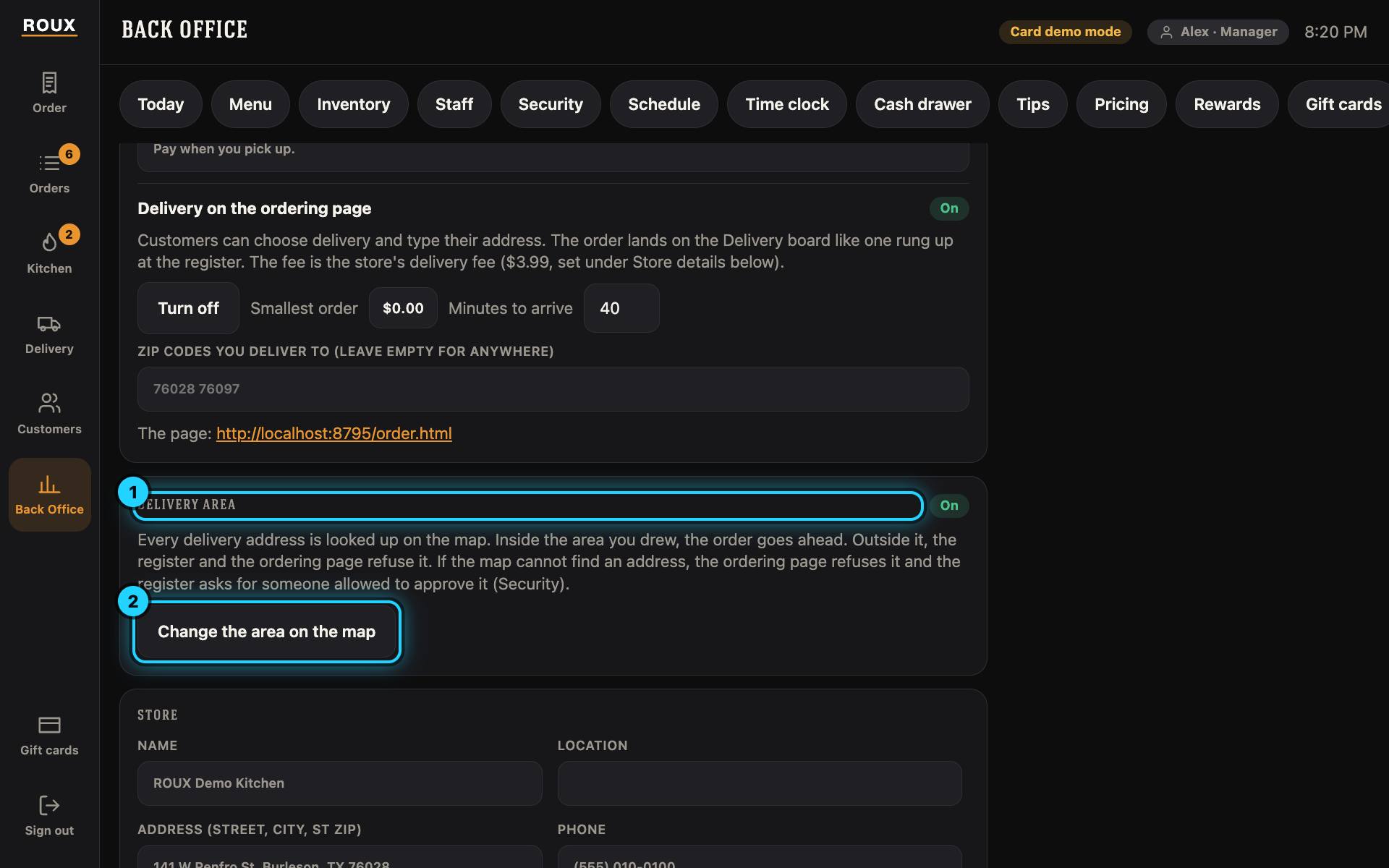
- Check the store address under Back Office > Settings > Store. Write it as Street, City, ST ZIP so the map can start on your store.
- In Back Office > Settings > Delivery area, press Draw the area on a map.
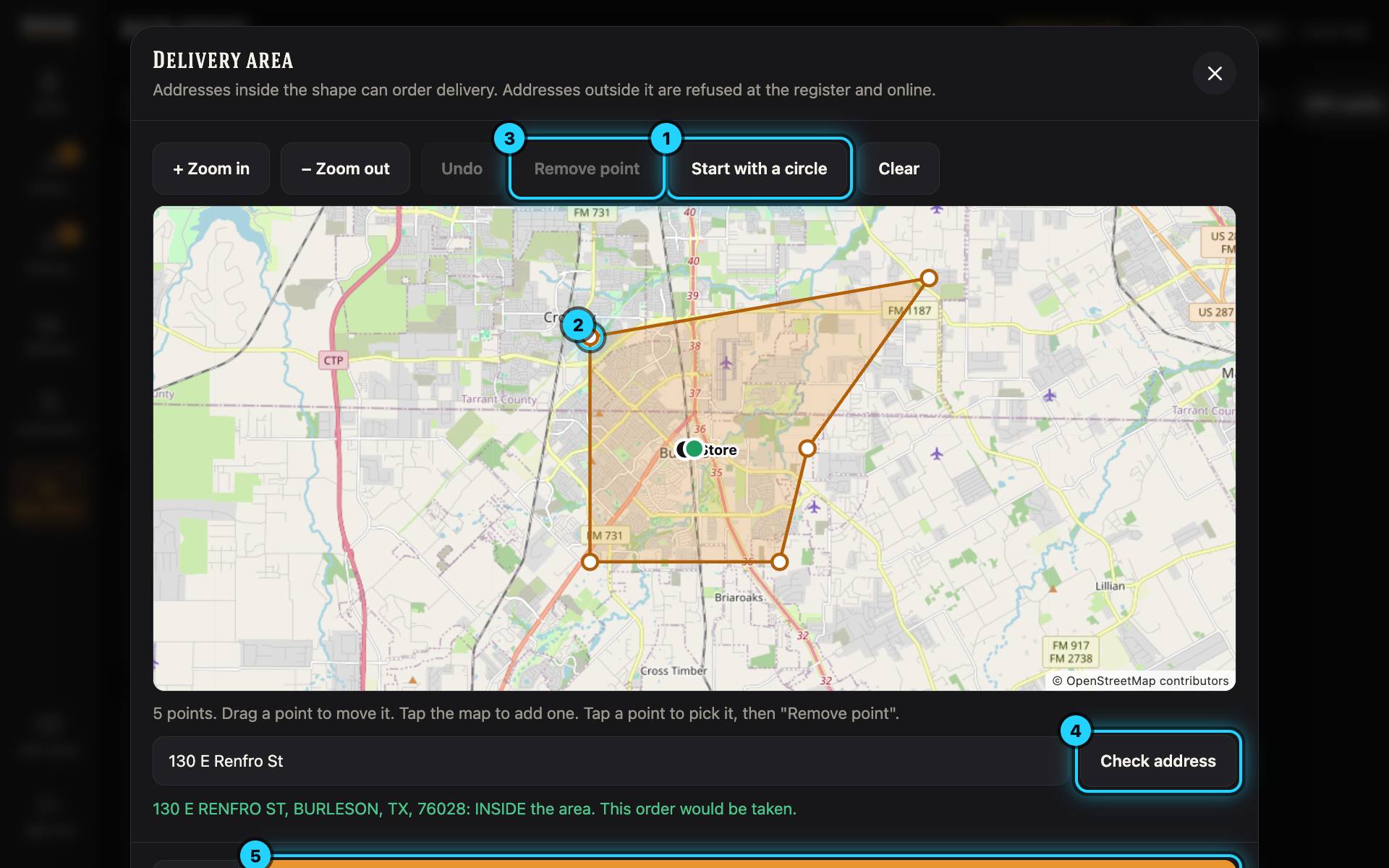
- Tap the map around the edge of where you deliver. Or press Start with a circle and enter the miles from the store.
- Drag a point to move it. Tap near an edge to add a point there. Tap a point, then Remove point, to take it out.
- Type an address in the box under the map and press Check address. A green pin is inside, a red pin is outside.
- Press Save delivery area.
What happens to an order
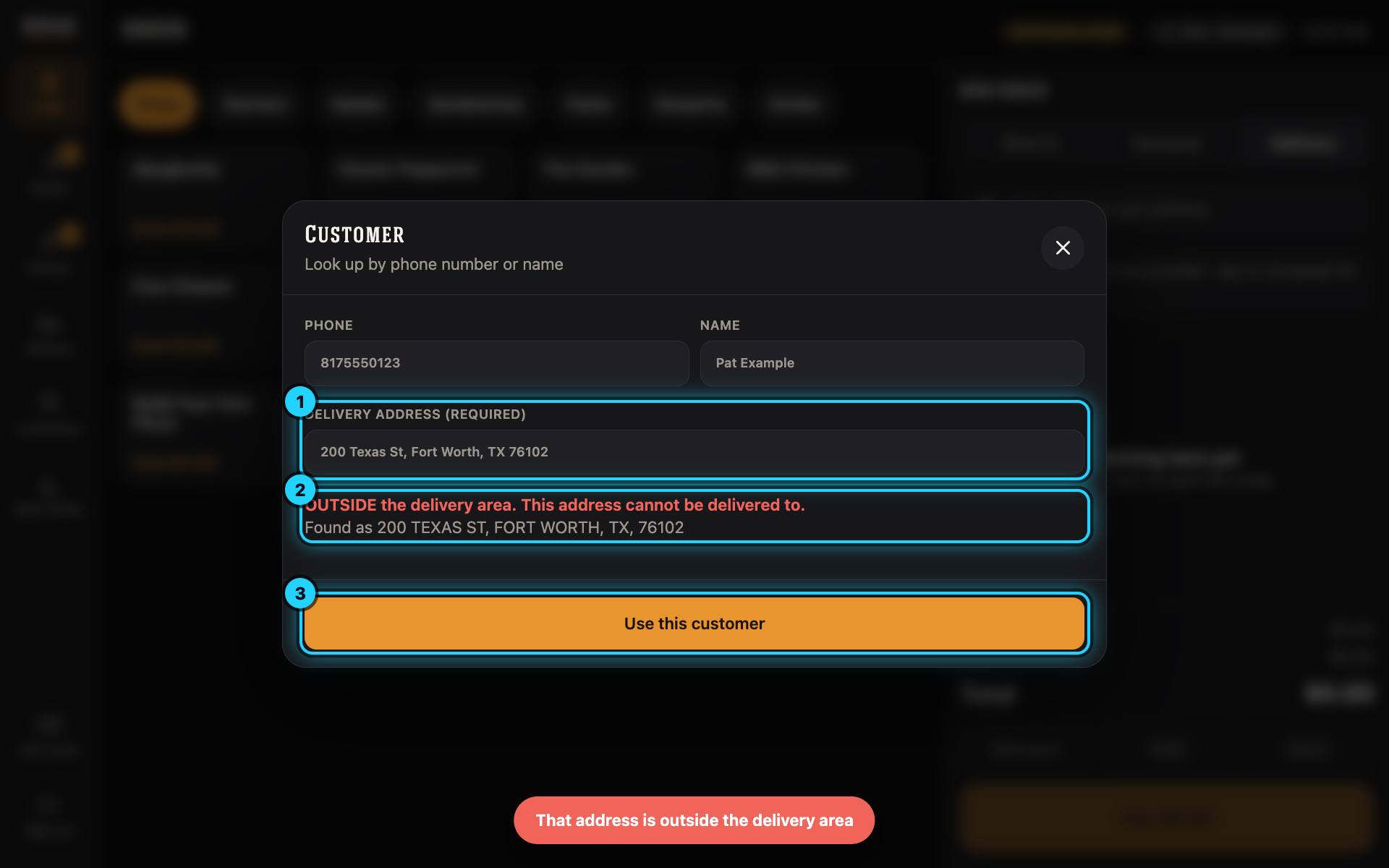
- Inside the area: the order goes ahead as normal.
- Outside the area: the register and the ordering page refuse it. A manager PIN does not get around it. Offer carryout.
- The map cannot find the address: the ordering page asks the customer to call the store. The register asks for someone allowed to approve it, and the approval is written to the audit log.
Good to know
- Until an area is saved, any address is accepted.
- If someone types only a street, ROUX assumes the store's city. Add the city for an address in another town.
- The address finder is the free US Census one. Brand new streets can be missing, which is why the register allows an approval.
- Who may approve is the permission Send a delivery to an address the map could not find in Back Office > Security.
- The map pictures need the internet. The ZIP list on the ordering page still applies as well.
- DoorDash and Uber Eats app orders are not checked: those services deliver them.
- To remove the area, open the map, press Clear, then save.