Knowledge base › Online and app orders
Orders placed in their apps land in the register as paid pickup orders.
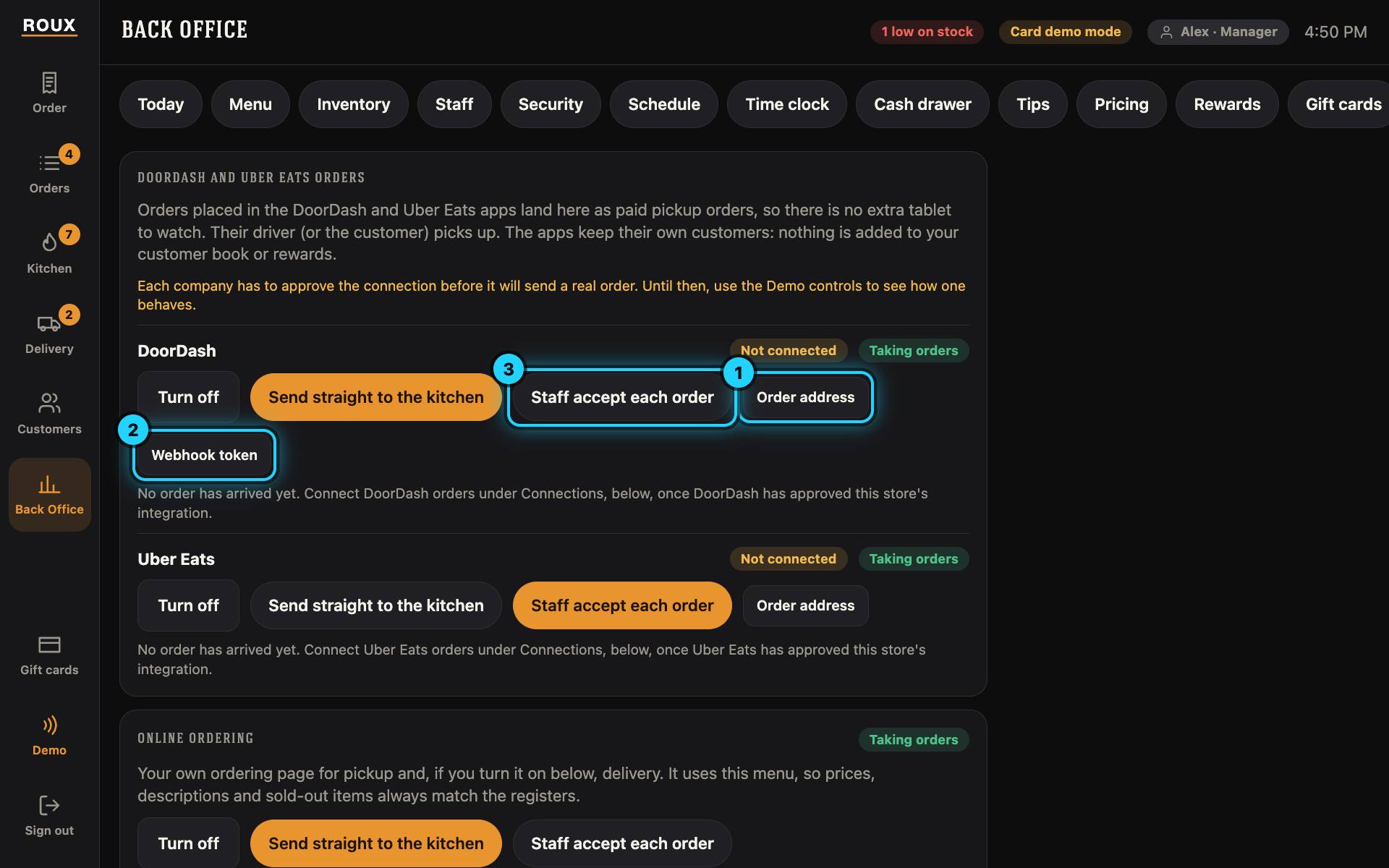
Turn it on
- Apply to DoorDash and to Uber for a point-of-sale integration. Both must approve first.
- In Back Office > Settings > DoorDash and Uber Eats orders, press Order address and give that address to the company. For DoorDash also give them the Webhook token.
- Under Connections, connect "DoorDash orders" and "Uber Eats orders".
- Choose Send straight to the kitchen or Staff accept each order, then press Turn on.
Use it
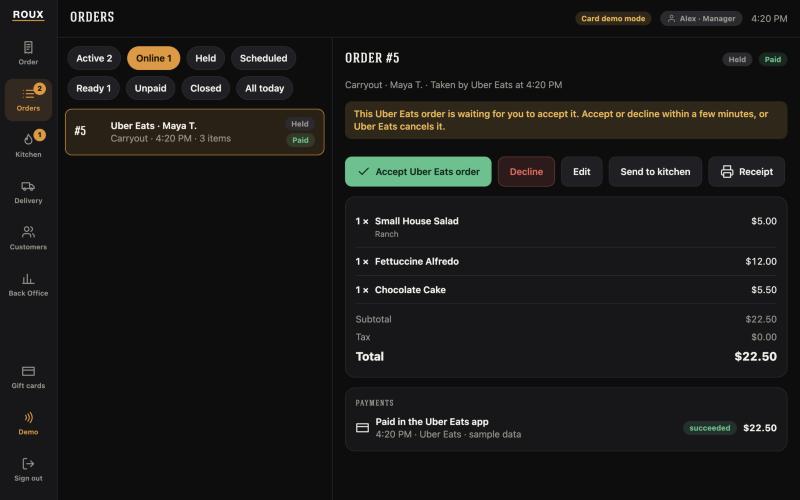
- The order appears marked DoorDash or Uber Eats.
- If it is waiting, press Accept or Decline within a few minutes.
- Make it. Do not take payment.
- Bump it to ready and hand it to the driver.
Good to know
- The app's customers are not added to your customer book and earn no points.
- If the app cancels, the order is voided with a red banner.
- Only run against pretend servers so far.