Knowledge base › Getting started
Every register, kitchen screen, customer display and menu board has to be connected to the store before it shows anything.
The store's very first screen
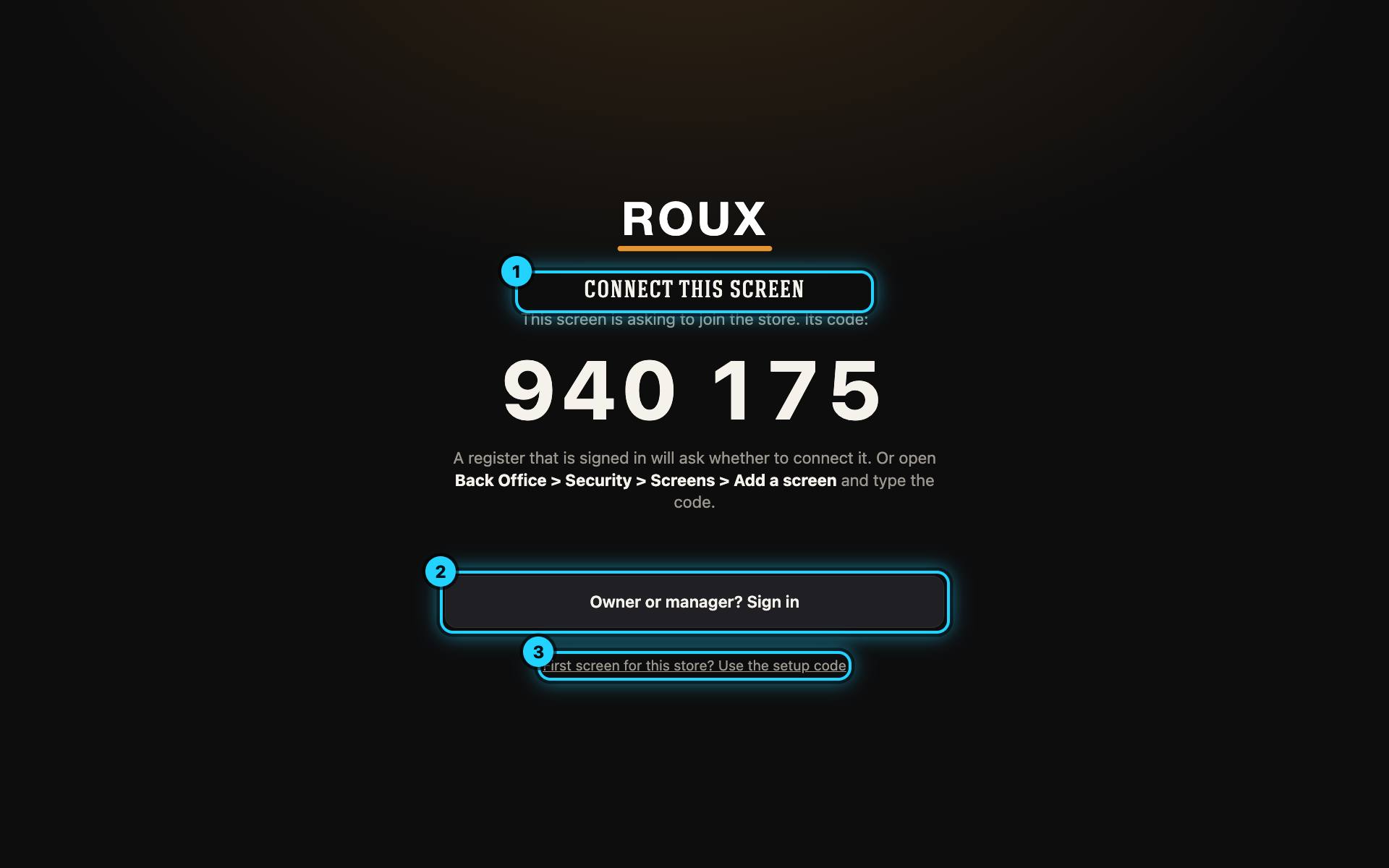
- Open the store's address in the browser, or open the ROUX app and type the store's name.
- The screen shows a six-digit code. Tap First screen for this store? Use the setup code.
- Type the setup code BPAUL gave you.
Every screen after that
- Open the store's address on the new screen. It shows a six-digit code. Nobody types anything on it.
- On a register where a manager is signed in, a pop-up says A new screen wants to connect.
- Check the code matches, choose what the screen is (register, customer display, kitchen screen or menu board), give it a name, and accept.
- The new screen moves on by itself.
Good to know
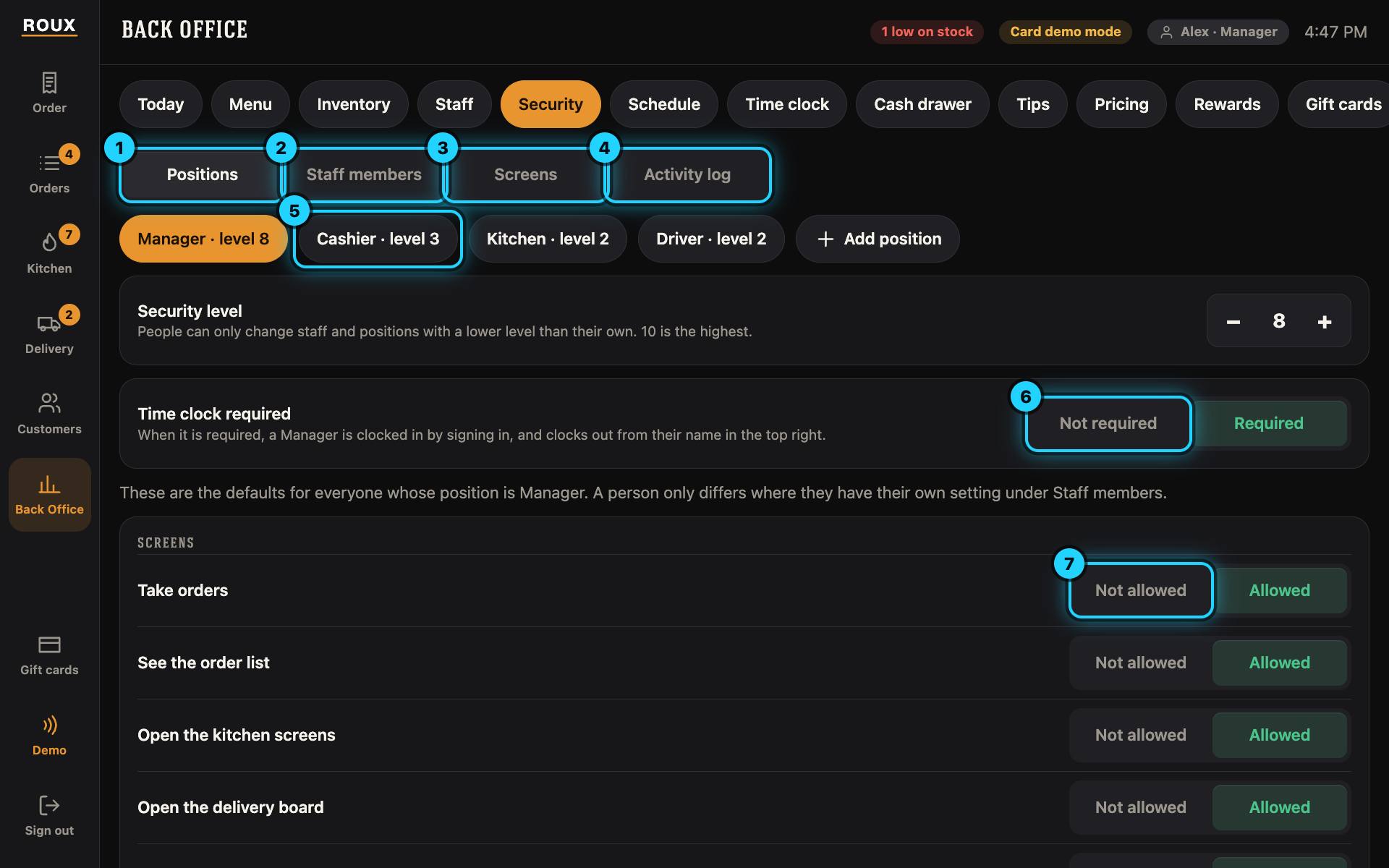
- The pop-up only appears for screens in the same building. For a screen somewhere else, a manager types its code in Back Office > Security > Screens > Add a screen.
- Only someone with the Security permission can accept a screen.
- A lost or retired screen can be removed in the same Screens list.